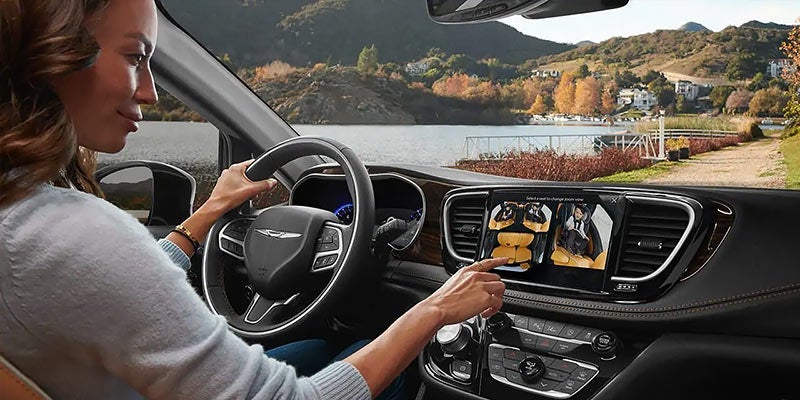




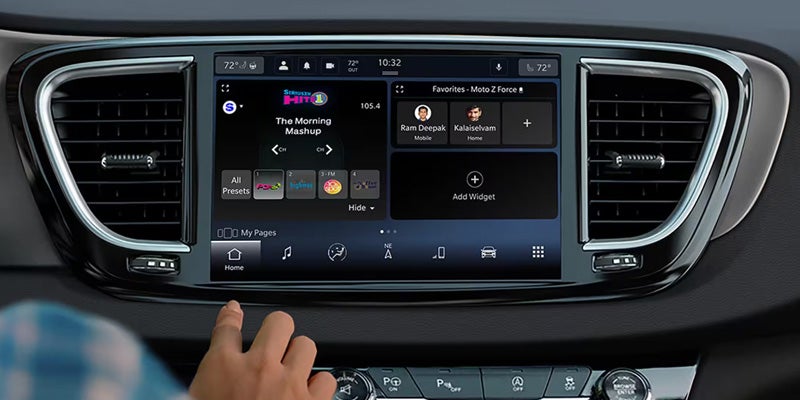
If you've recently purchased a new Chrysler, Dodge, Jeep, or Ram vehicle, it probably came equipped with the Uconnect® 5 infotainment system. Though it’s very user-friendly, knowing how to use the Uconnect® 5 system makes a real difference in how comfortable and connected you feel behind the wheel. This guide walks you through the essentials so you can get the most out of your drives around Wolf Point, Montana from day one.
The Uconnect® infotainment system has evolved significantly over the years, and Uconnect® 5 is the most capable version yet. It runs on a faster processor than its predecessors, which means quicker response times and smoother performance across all functions.
Setting Up Your Uconnect® 5 for the First Time
When you first start your vehicle, the Uconnect® 5 system will walk you through a quick setup process. You'll be prompted to set your language, time zone, and display preferences. Take a few minutes to complete this step—it personalizes the experience and saves you time later.
One of the first things you'll want to do is pair your smartphone through Bluetooth™. From the home screen, tap "Phone," then select "Add a Device," and follow the on-screen prompts. Both Apple CarPlay® and Android Auto™ are supported through a wireless connection on most trim levels, which means you don’t need to clutter up your cabin or fumble with cables to get all your apps and playlists.
How to Use Uconnect® 5 Navigation & Voice Commands
The built-in navigation system on the Uconnect® infotainment system is straightforward to use. Tap the navigation app from the home screen, enter your destination using the touchscreen keyboard, and confirm your route. The system offers real-time traffic updates so you can avoid delays on your commute or road trip.
Voice commands make navigating even easier. Press the microphone button on your steering wheel and speak naturally. You can say things like "Navigate to the nearest gas station," or "Call home," and the system responds quickly. This feature is especially helpful when you're driving through areas around Wolf Point, MT, where keeping your eyes on the road matters most.
Personalizing Your Display and Audio Settings
Matching the Uconnect® 5 system to your preferences is easier than you might expect. The home screen is fully customizable—you can rearrange app icons, adjust brightness, and switch between light and dark display modes. Just tap the gear icon in the corner of the screen to get into settings.
Audio settings are equally flexible. Whether you're tuning into AM/FM radio, SiriusXM™ satellite radio, or streaming music through your connected phone, the sound controls allow you to adjust bass, treble, and balance. The available premium audio options on select models deliver noticeably richer sound quality throughout the cabin.
Connecting to Wi-Fi® and Using the Wireless Hotspot
Many vehicles equipped with Uconnect® 5 include an available built-in wireless hotspot. To activate it, go to "Settings," then "Wi-Fi Hotspot," and follow the steps to name your network and set a password. This allows passengers to connect their devices without using their own mobile data—a practical bonus on longer drives.
To connect to an external Wi-Fi® network, go to "Settings," tap "Wi-Fi," and select your preferred network from the list. A stable connection can enable over-the-air software updates for the Uconnect® infotainment system, which means your vehicle's technology improves without requiring a dealership visit.
It’s That Easy
Understanding how to use Uconnect® 5 helps you get more out of every drive, whether you're navigating back roads or streaming music on a cross-country trip. It makes the things you do every day simpler so you can focus on the road ahead. Now that you have some baseline familiarity with the already-intuitive system, connectivity happens from the moment you sit behind the wheel. If you have questions or want a hands-on walkthrough, the team at Northern Prairie LLC is happy to help. Visit us to explore inventory and connect with knowledgeable staff serving drivers throughout Wolf Point, MT.